Structured data, particularly JSON-LD schema, plays a crucial role in how search engines understand and display your website's content. By implementing JSON-LD, you can provide explicit clues about the meaning of your pages, potentially leading to richer search results (rich snippets) and improved visibility.
## How to Add JSON-LD Schema to Your Bullet Database Pages
To add JSON-LD schema to your Bullet database pages, you need to create a specific text property in your Notion database and populate it with your JSON-LD code.
Here's how to do it:
1. **Open Your Notion Database**: Navigate to the Notion database that powers the Bullet pages where you want to add JSON-LD schema.
2. **Add a New Property**: Click the `+ Add a propery` icon to add a new property to your database.
- **Name**: Name the property `bullet:json-ld`. This exact naming convention is crucial for Bullet to recognize and process the schema.
- **Type**: Select `Text` as the property type.
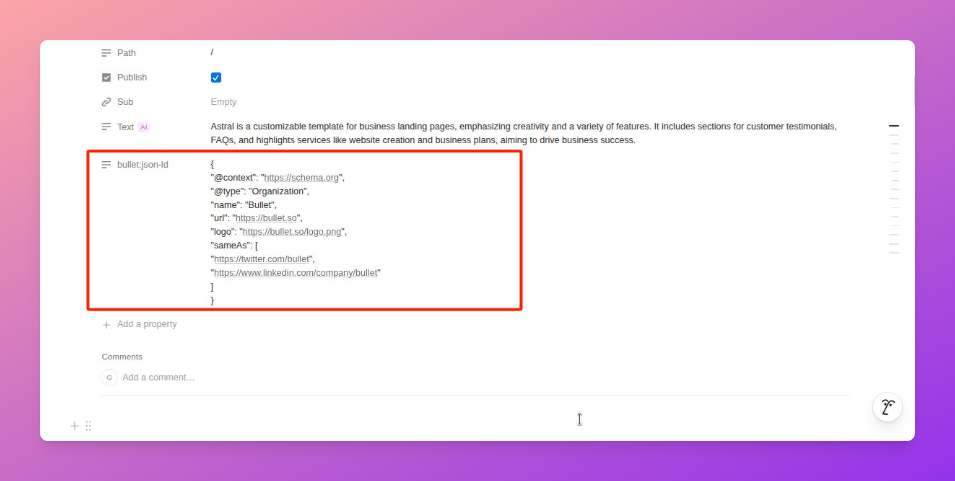
3. **Add Your JSON-LD Schema**: For each page in your database, paste the relevant JSON-LD schema into the value of`bullet:json-ld` property. (You can use AI or automation like Zapier to fill this property.
**Example JSON-LD for an Article:**
```
  {
    "@context": "https://schema.org",
    "@type": "Organization",
    "name": "Bullet",
    "url": "https://bullet.so",
    "logo": "https://bullet.so/logo.png",
    "sameAs": [
      "https://twitter.com/bullet",
      "https://www.linkedin.com/company/bullet"
    ]
  }
```
4. Remember to replace the placeholder values in the example with your actual content. You can find various JSON-LD schema types and generators online for different content types (e.g., Product, Event, LocalBusiness).
Add JSON-LD Schema to Your Bullet Pages
Structured data, particularly JSON-LD schema, plays a crucial role in how search engines understand and display your website's content. By implementing JSON-LD, you can provide explicit clues about the meaning of your pages, potentially leading to richer search results (rich snippets) and improved visibility.
To add JSON-LD schema to your Bullet database pages, you need to create a specific text property in your Notion database and populate it with your JSON-LD code.
Here's how to do it:
Open Your Notion Database: Navigate to the Notion database that powers the Bullet pages where you want to add JSON-LD schema.
Add a New Property: Click the + Add a propery icon to add a new property to your database.
Name: Name the property bullet:json-ld. This exact naming convention is crucial for Bullet to recognize and process the schema.
Type: Select Text as the property type.
Add Your JSON-LD Schema: For each page in your database, paste the relevant JSON-LD schema into the value ofbullet:json-ld property. (You can use AI or automation like Zapier to fill this property.
Remember to replace the placeholder values in the example with your actual content. You can find various JSON-LD schema types and generators online for different content types (e.g., Product, Event, LocalBusiness).
Was this page helpful?
How can we improve?
Start typing to search documentation…
Pages
Ask AI assistant
AI Assistant
Sources cited
AI is thinking
Hi! I'm your AI assistant. Ask me anything about this documentation.
