Bullet has a wide range of templates to choose from catering to different use cases. We have dedicated templates for blogs, knowledge-base, portfolios, landing pages and directories.
[Choose a template](https://bullet.so/templates/)
Now, after you have selected your preferred template, follow the steps below.
## Step 1: Duplicate the template.
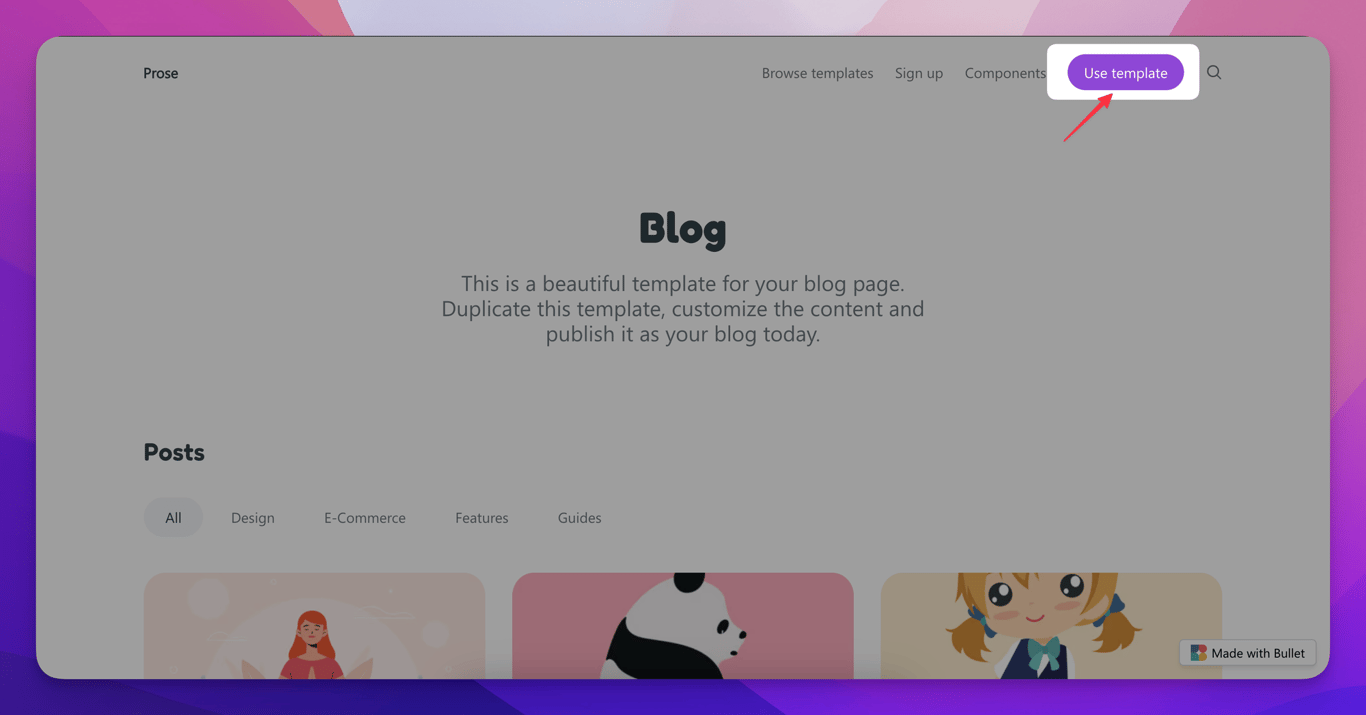
1. Click on the "**Use template**" from the top right corner of the template webpage.
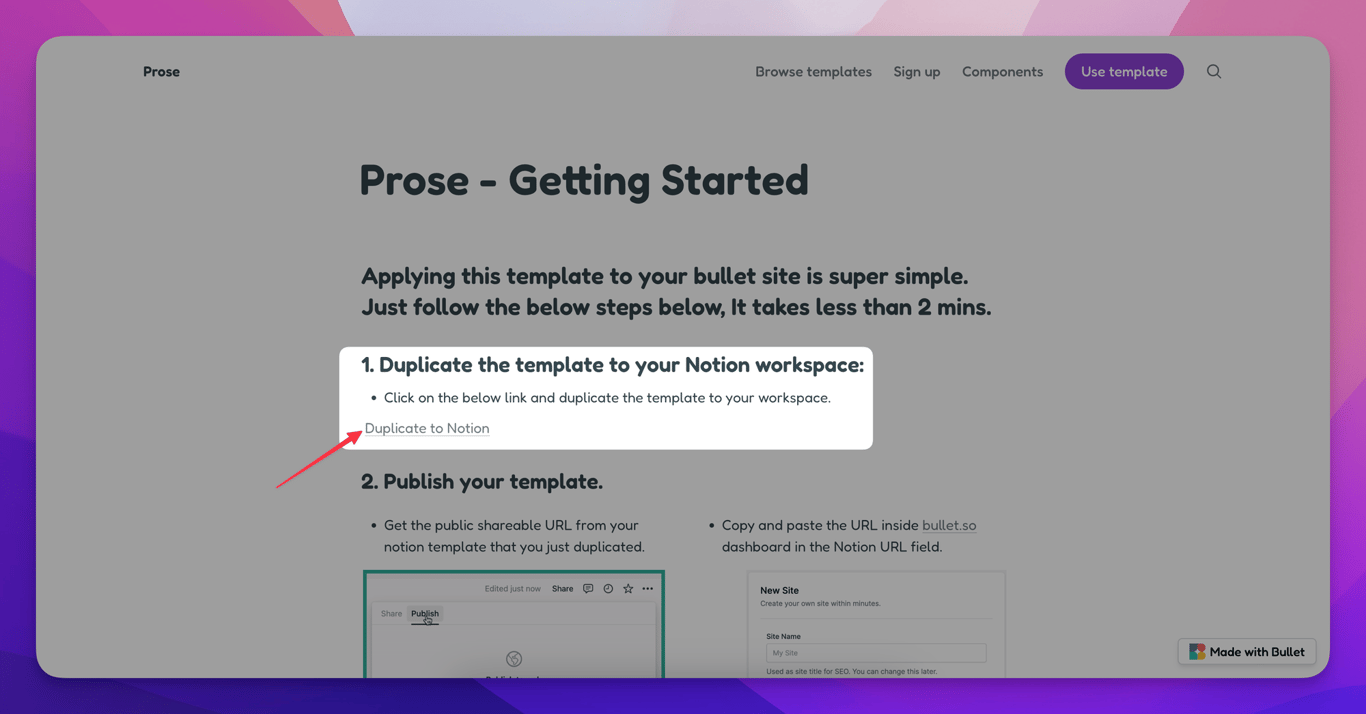
2. Now, click on the "**Duplicate to Notion**" option in the 1st step of the Getting Started page.
3. Next, click on the "**Duplicate**" option in the top right corner of the Notion page.
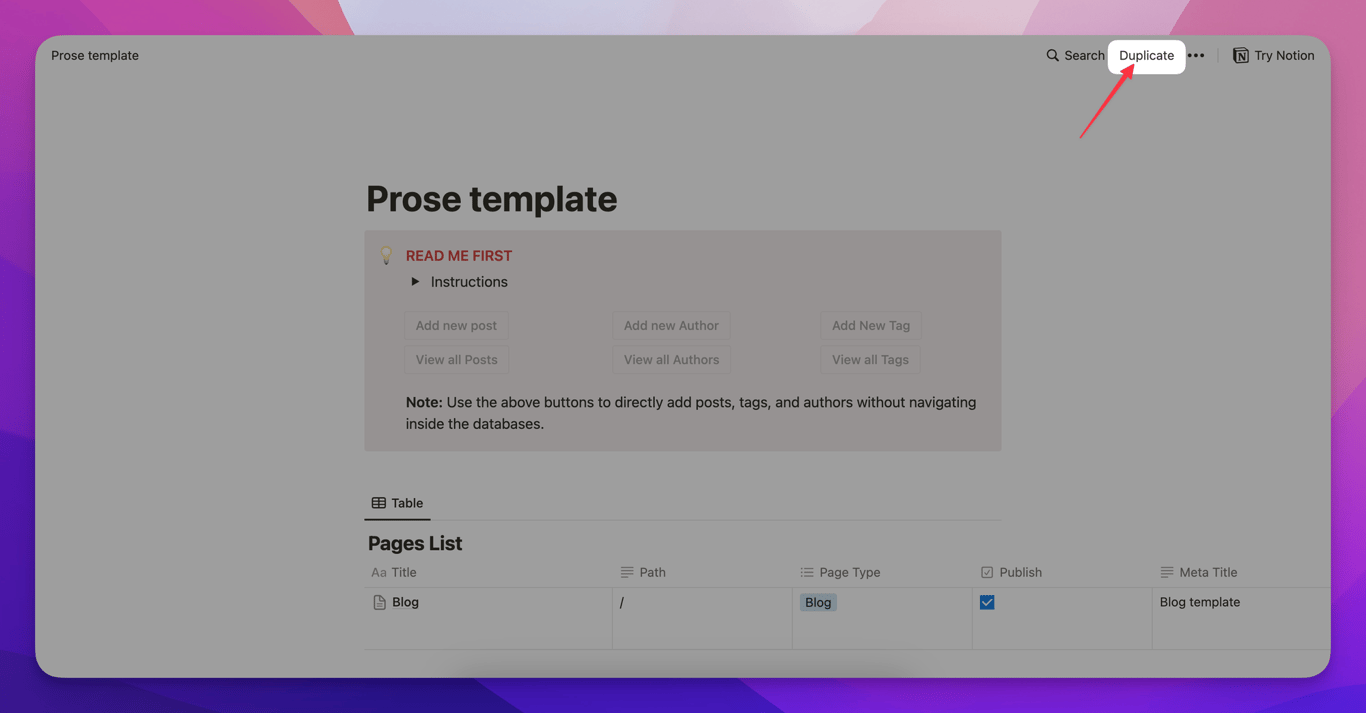
4. Log in to your Notion workspace on the same browser if you are not already, and it will automatically duplicate into your Notion workspace.
## Step 2: Customize your template.
1. Once the template is duplicated into your Notion workspace, start customizing it.
2. Based on the template you chose, a dedicated components page exists for each one, which shows the different types of content blocks you can build using that specific template.
3. Build your notion pages using them as references.
## Step 3: Copy and paste the Notion public URL
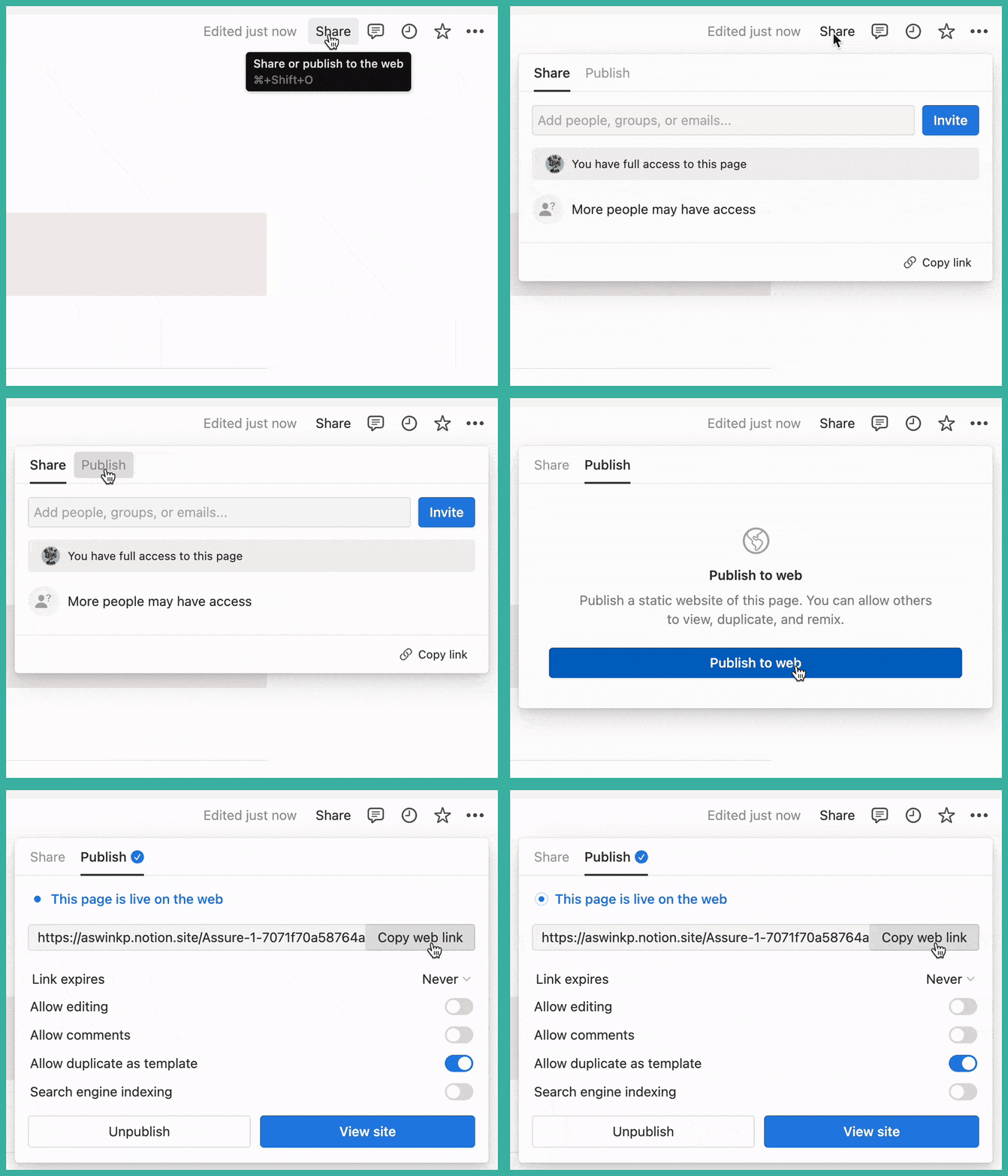
1. After customizing your site, click on "**Share**" in the top right corner of your Notion page
2. Now, select the publish option and click on click on "**Publish to web**"
3. Next, copy and paste the published URL into the Bullet dashboard and hit **Create.**
## Step 4: Apply design and styles for your website.
1. Copy the given code from the "**Getting Started**" page of your template
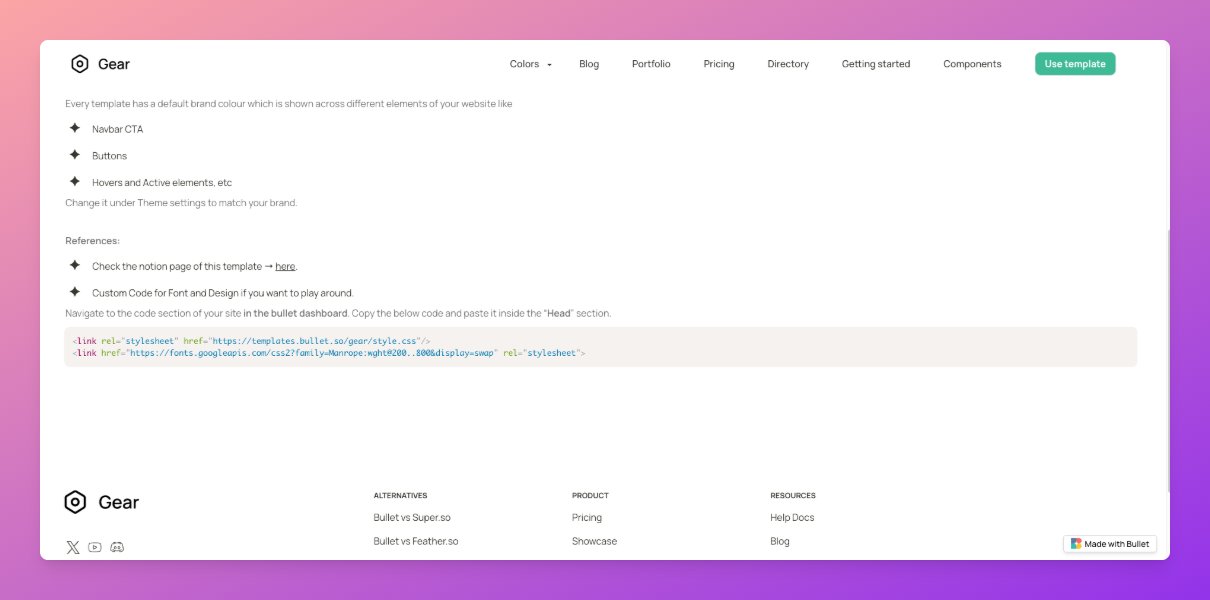
2. Open the bullet dashboard and paste it in under "**Code → Head**" of the site
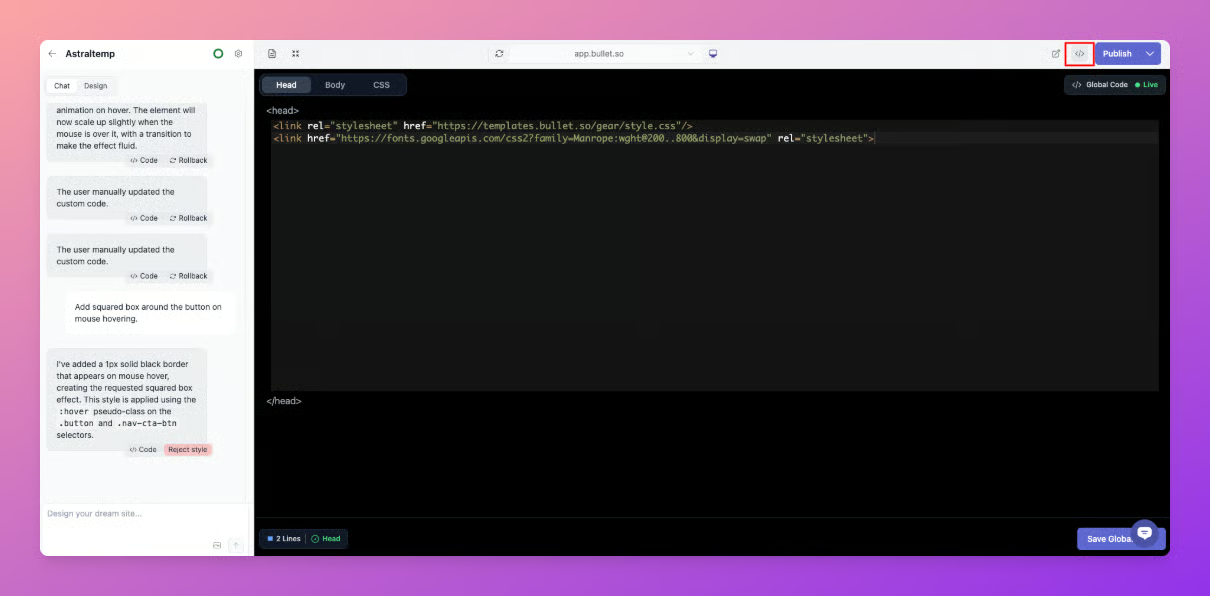
3. Publish your site from the bullet dashboard.
---
## Legacy User
### Step 4: Apply design and styles for your website.
1. Copy the given code from the "**Getting Started**" page of your template
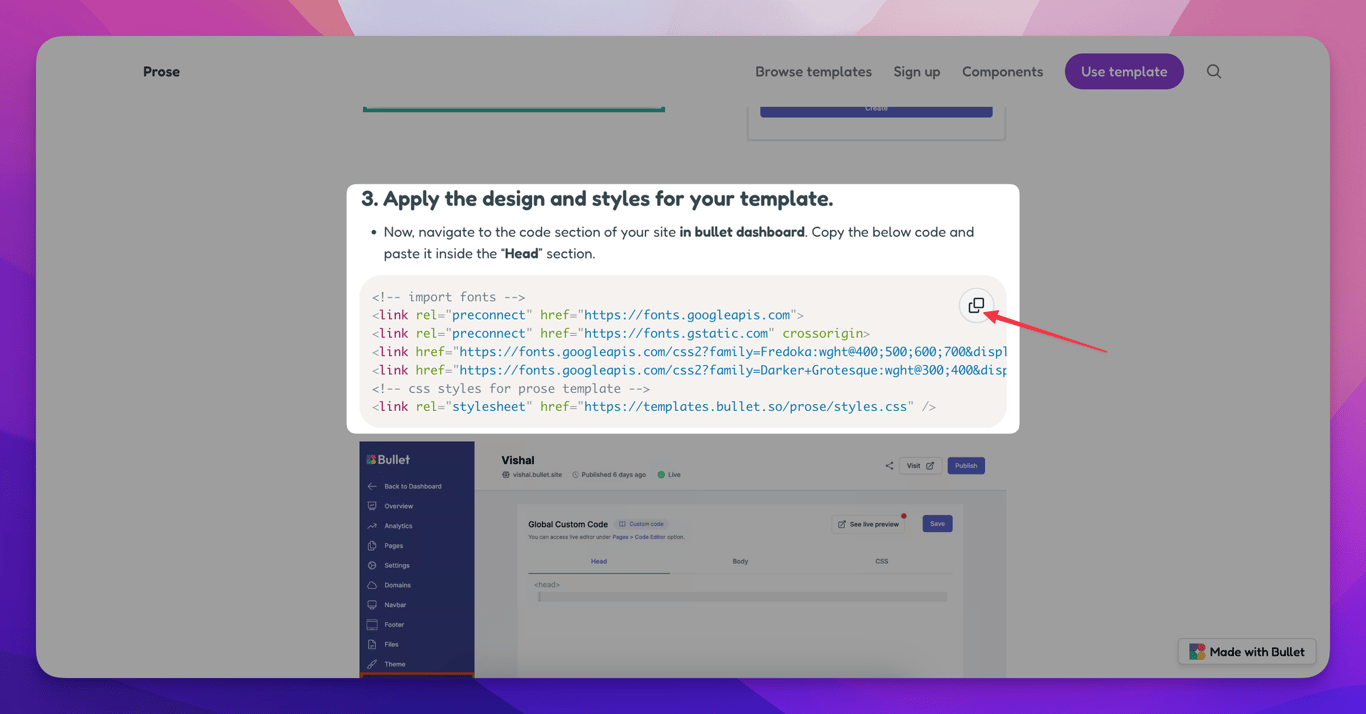
2. Open the bullet dashboard and paste it in under "**Code → Head**" of the site
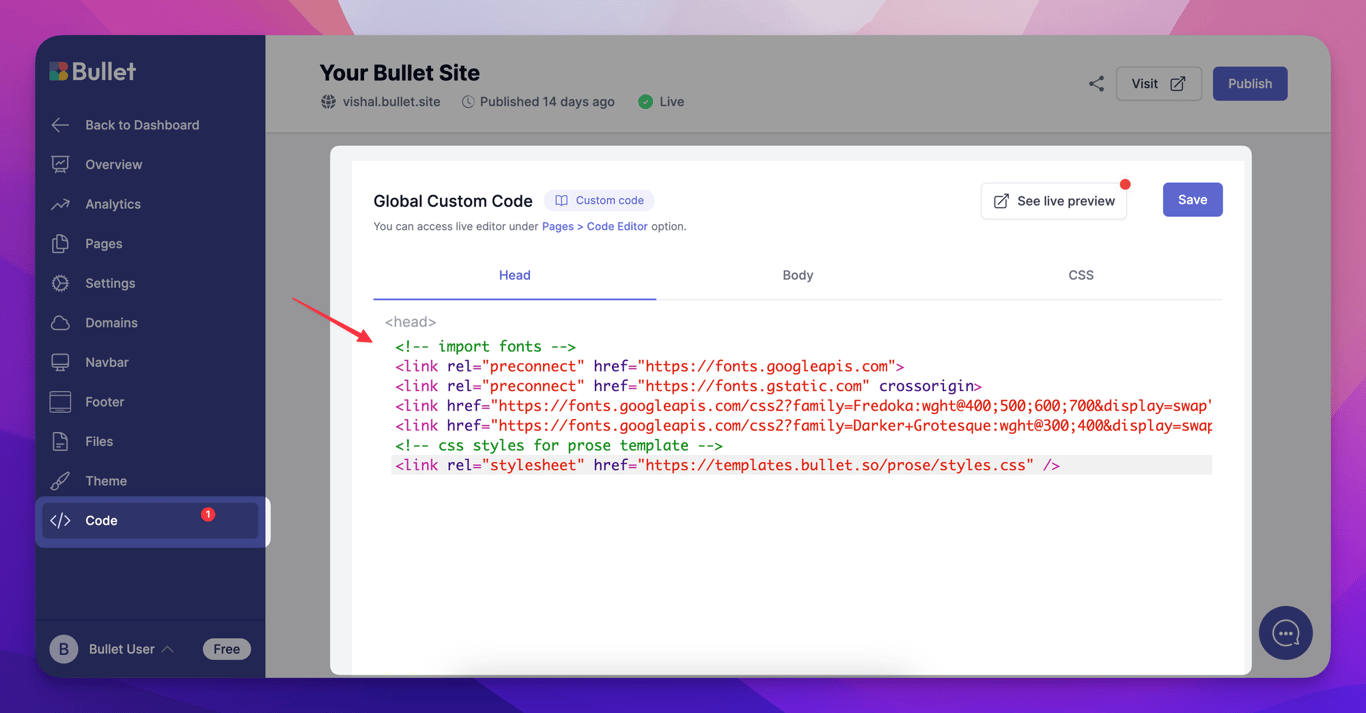
3. Publish your site from the bullet dashboard.
How to use a Bullet Template
Bullet has a wide range of templates to choose from catering to different use cases. We have dedicated templates for blogs, knowledge-base, portfolios, landing pages and directories.
Once the template is duplicated into your Notion workspace, start customizing it.
Based on the template you chose, a dedicated components page exists for each one, which shows the different types of content blocks you can build using that specific template.







