If you decide to remove your Bullet site, the process varies slightly depending on whether you are a non-paid or paid user. Please follow the instructions below carefully.
## For Non-Paid Users
To delete your Bullet site, follow these simple steps:
1. Navigate to your **Site Settings**.
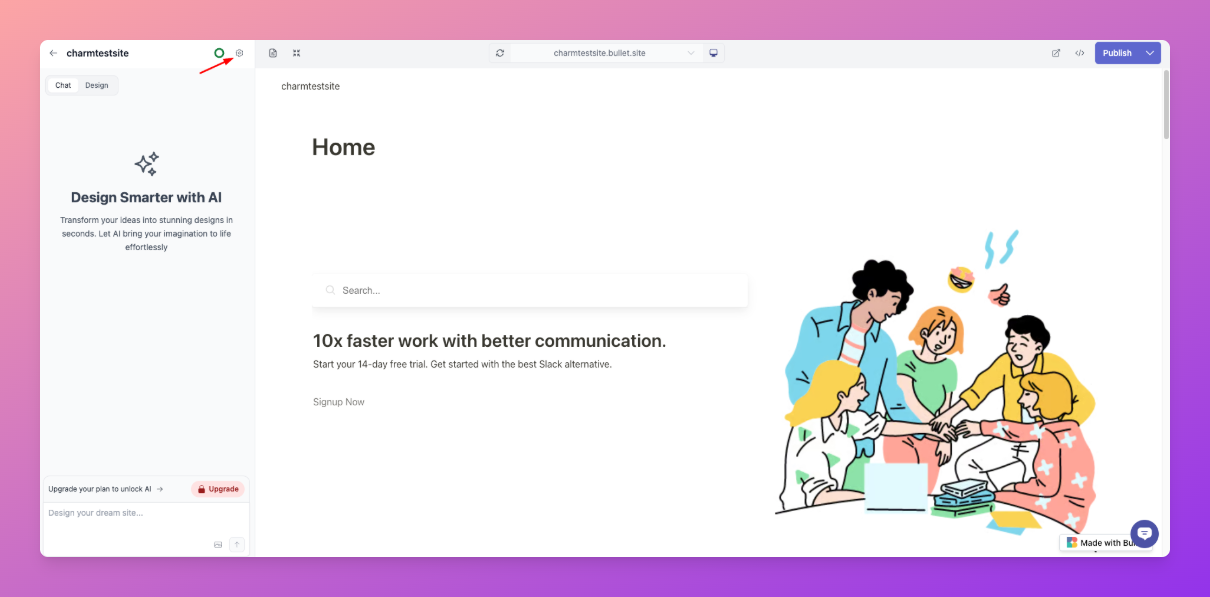
2. Select the **General** tab.
3. Scroll down and click on **Delete Site**.
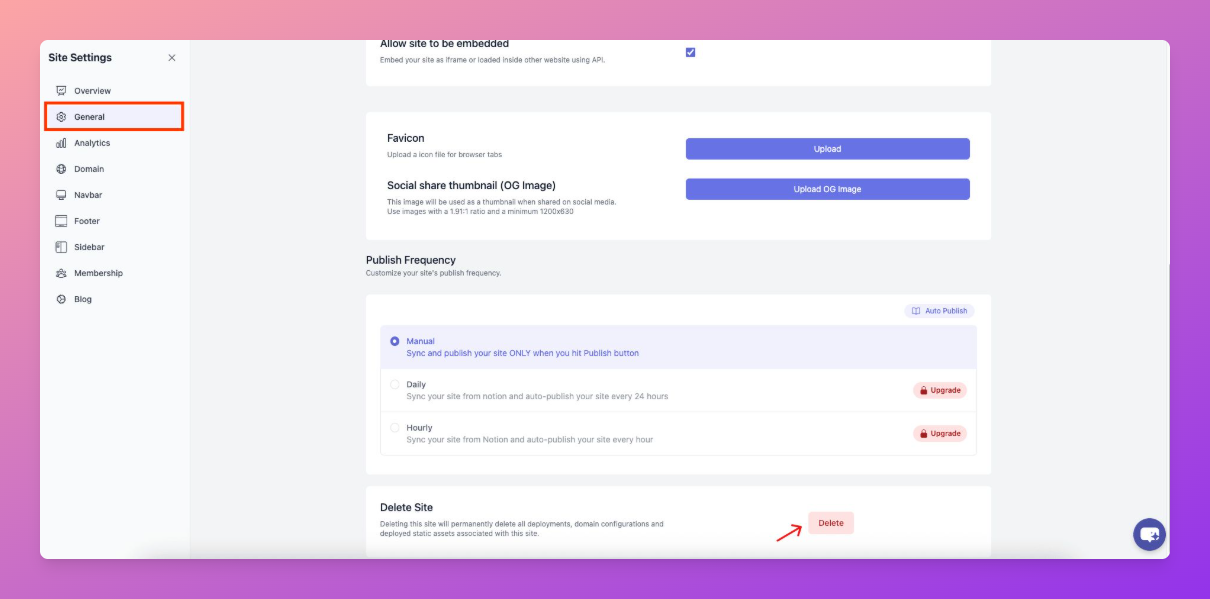
4. Confirm your decision when prompted.
## For Paid Users
If you have an active subscription for your Bullet site, you must first downgrade your plan before you can delete the site.
1. Go to your **Billing** section.
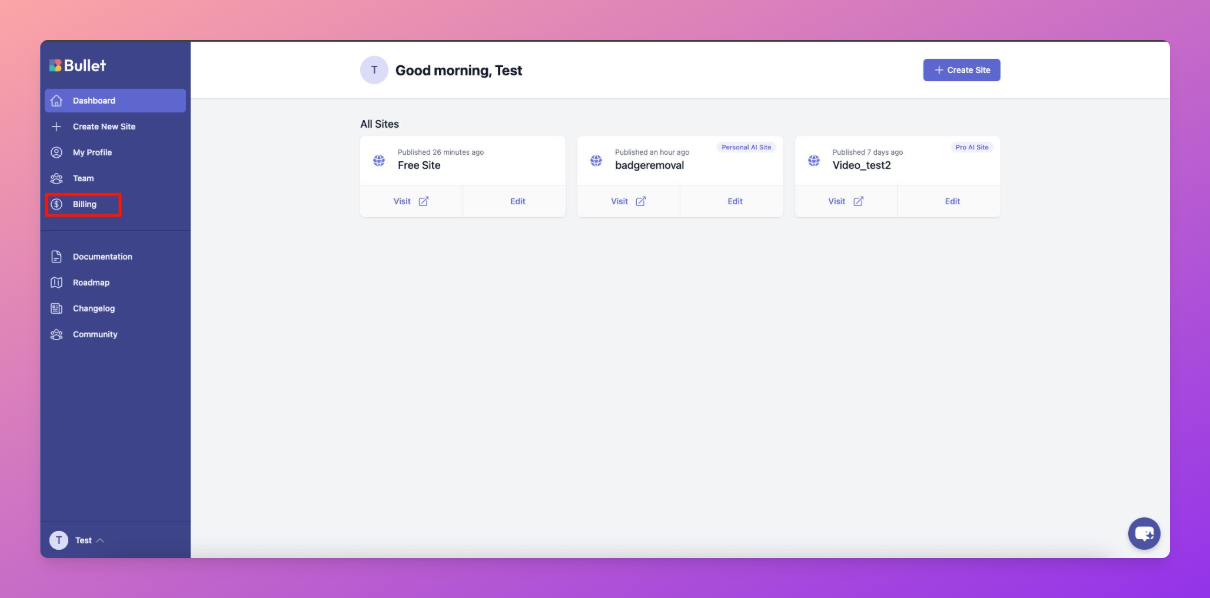
2. Locate the site you wish to delete and click the **three-dot menu** next to it.
3. Choose **"Downgrade to Free"**.
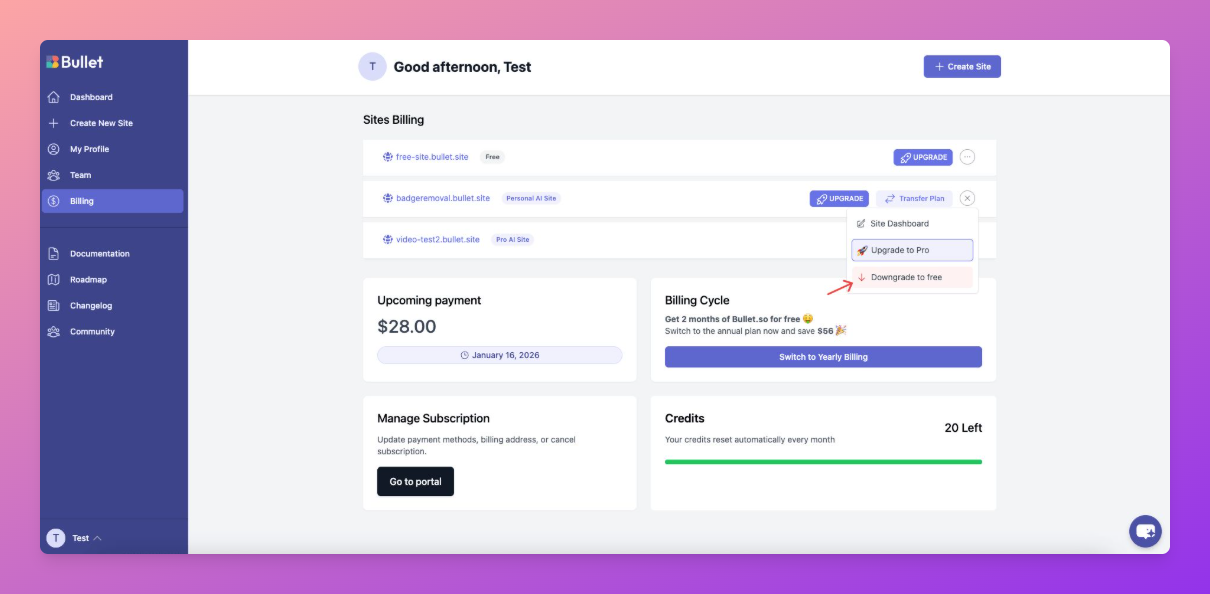
4. You will be able to delete your site once the current billing cycle ends and the site is downgraded to the free plan.
5. Once your site is on a free plan, follow the steps outlined above for **Non-Paid Users** to complete the deletion process.
How to Delete Your Bullet Site
If you decide to remove your Bullet site, the process varies slightly depending on whether you are a non-paid or paid user. Please follow the instructions below carefully.
If you have an active subscription for your Bullet site, you must first downgrade your plan before you can delete the site.
Go to your Billing section.
2. Locate the site you wish to delete and click the three-dot menu next to it.
3. Choose "Downgrade to Free".
4. You will be able to delete your site once the current billing cycle ends and the site is downgraded to the free plan.
5. Once your site is on a free plan, follow the steps outlined above for Non-Paid Users to complete the deletion process.
Was this page helpful?
How can we improve?
Start typing to search documentation…
Pages
Ask AI assistant
AI Assistant
Sources cited
AI is thinking
Hi! I'm your AI assistant. Ask me anything about this documentation.



