This document will be helpful if you want to:
- Apply different templates to different pages of the same website.
- Apply a template to only a specific page and keep other pages as the default Notion design.
Note: You can’t combine two different templates on the same page, as that will lead to a clash of styles for the same elements.
Any Bullet template that you see on our templates page is a combination of a Notion template and a set of CSS styles and JavaScript for that template.
For every template, you can see the Notion template link and CSS code under its respective `/getting-started/` page.
For example, see for Docuflow template: [https://docuflow.bullet.ink/getting-started/](https://docuflow.bullet.ink/getting-started/)
If you’ve created your site during the onboarding flow from the Bullet dashboard, you will see a global code inside Code > Head, Code > Body. This code will be applied to all the pages on the website.
So this consists of two steps.
## Step 1: Move the current template code from global to page-specific
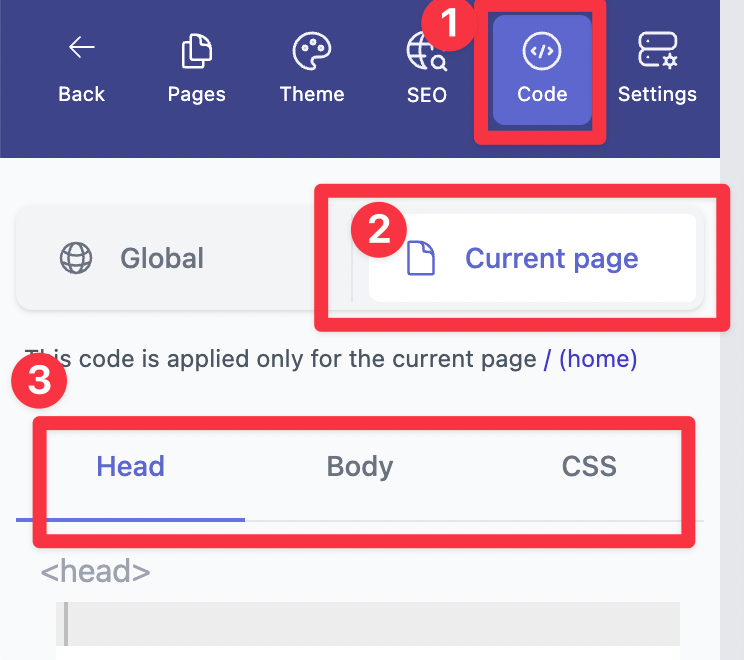
Now that you want this code to be applied only inside specific pages, remove this code from the global code, and paste this code under page-specific code under Pages > Select the page > Code > Current page.
## Step 2: Copy the new template code into a different page
Go to any other template that you have already, then copy the code to the specific page.
For example, if you want to add Gear template to the specific page, go to its [getting started page](https://gear.bullet.site/getting-started/) and scroll all the way to bottom to copy paste the code inside specific page.
How to use different templates on the same website
This document will be helpful if you want to:
Apply different templates to different pages of the same website.
Apply a template to only a specific page and keep other pages as the default Notion design.
Note: You can’t combine two different templates on the same page, as that will lead to a clash of styles for the same elements.
Any Bullet template that you see on our templates page is a combination of a Notion template and a set of CSS styles and JavaScript for that template.
For every template, you can see the Notion template link and CSS code under its respective /getting-started/ page.
If you’ve created your site during the onboarding flow from the Bullet dashboard, you will see a global code inside Code > Head, Code > Body. This code will be applied to all the pages on the website.
Now that you want this code to be applied only inside specific pages, remove this code from the global code, and paste this code under page-specific code under Pages > Select the page > Code > Current page.
Go to any other template that you have already, then copy the code to the specific page.
For example, if you want to add Gear template to the specific page, go to its getting started page and scroll all the way to bottom to copy paste the code inside specific page.
Was this page helpful?
How can we improve?
Start typing to search documentation…
Pages
Ask AI assistant
AI Assistant
Sources cited
AI is thinking
Hi! I'm your AI assistant. Ask me anything about this documentation.
