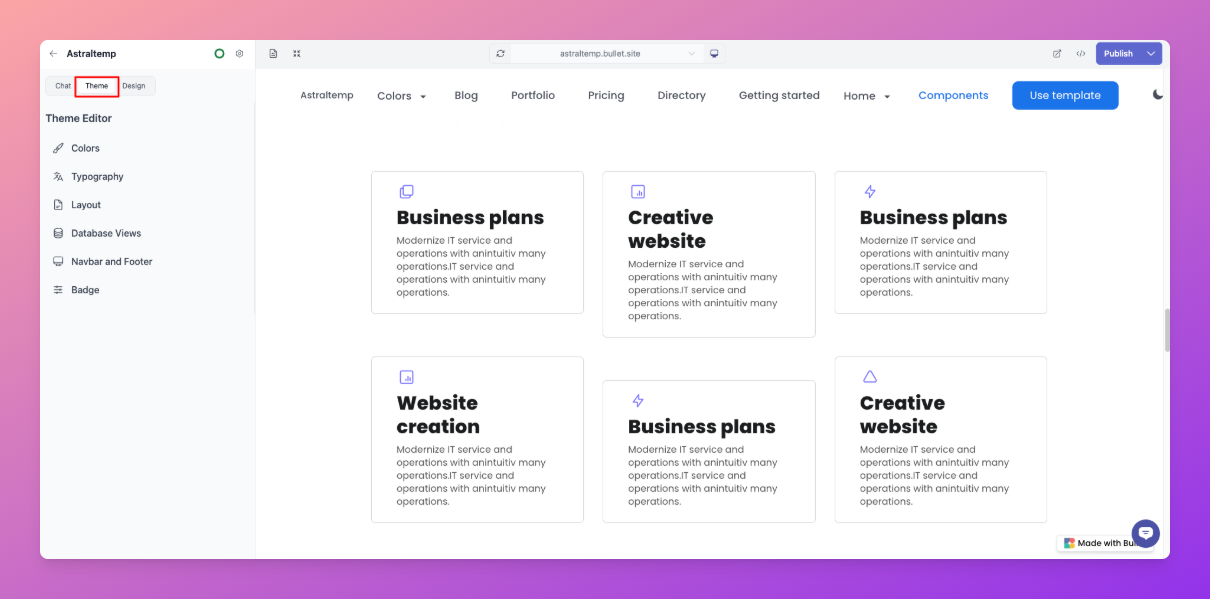
You can easily customize the design of your website with just a few clicks under the Theme section.
## Color
After creating your site, navigate to your **Theme** Section from the site dashboard to access a variety of color themes for your website.
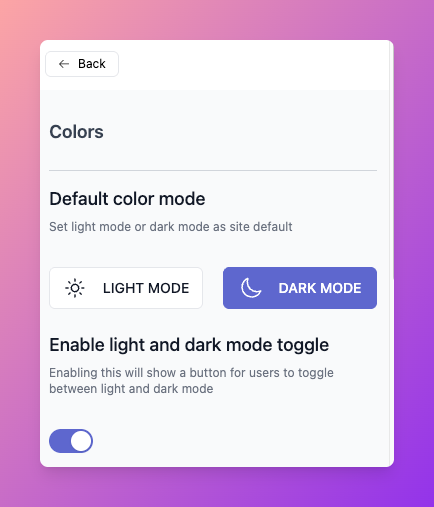
By default, the color mode will be **Light Mode.** You can choose and can toggle between the light and dark mode.
### Brand Colors
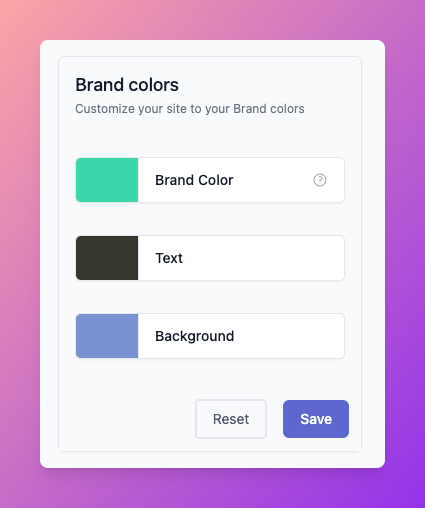
You can customize the color of your brand text, Background, and so on in the color section.
### Navbar Colors
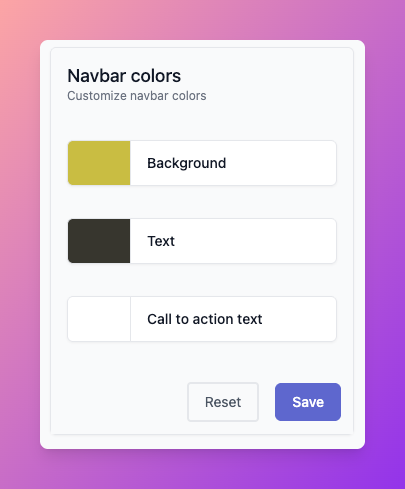
You can customize the colour of your website header under the **Navbar colors** section, applicable to Navbar text, background, and CTA text.
### Footer Colors
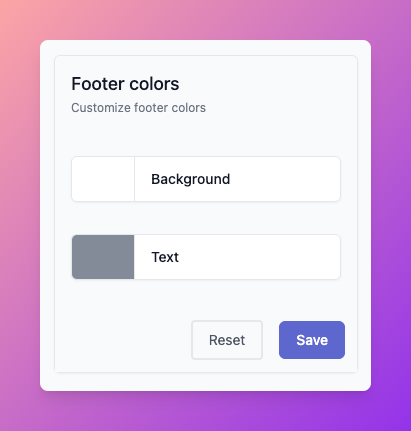
You can configure the color of your website footer under **Footer Colors** which is applicable to Footer text and background.
## Typography
Navigate to the **Typography** section to change the font style and font size of the titles, headings, and quotes.
### Font Family
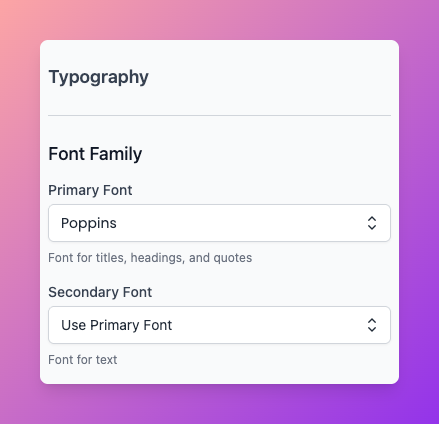
Customize the font style for your titles, headings, and quotes using Google Fonts under the **"Primary Fonts"** section. In the **"Secondary Font"** section, you can choose a font style for the text throughout your website.
### Font Size
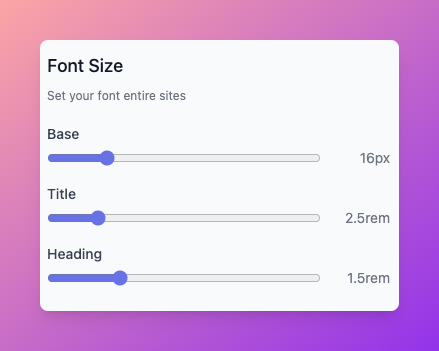
Here, you can modify the **font size** of your content, including headings, quotes, and text, according to your preferences.
## Layout
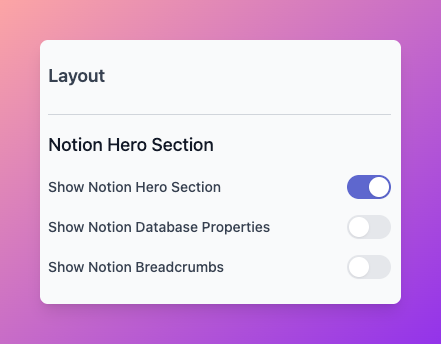
Navigate to **Layout** section to customize your site's layout. The site layout comes with three different sections.
1. **Spacing:** This section enables you to personalize your container width, adjust padding, and set a custom column gap.
2. **Notion Hero Section:** Customize your Notion hero section by adjusting the icon position, title position, and more.
3. **Border Radius:** This feature allows you to define the border radius for your entire site, such as for cards, callouts, and similar elements.
## Database Views
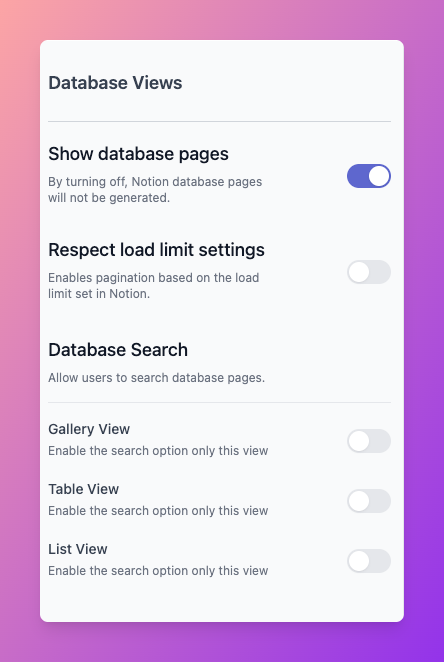
The **Database Views** section allows you to control how Notion database pages are displayed and how users can search within them on your Bullet site.
In the **'Database Views'** section of theme settings, you can tailor the configuration of the database, including the customization of individual cards within the database.
This includes customizing gallery views, cards, and search functionality in databases.
## Callout
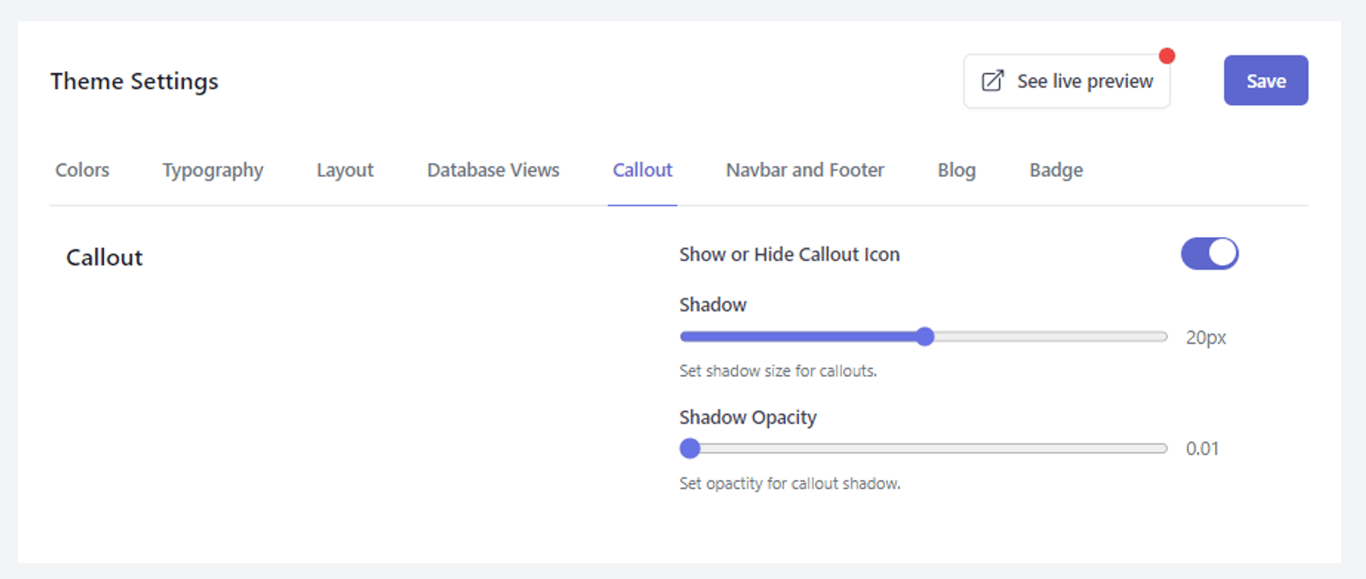
A customizable callout can be added to your site from the **"Callout"** page, where you can customize your callout, like shadow size and opacity of the callout.
## Navbar and Footer
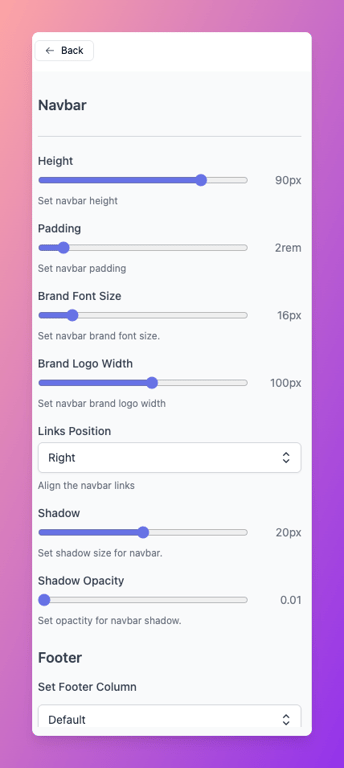
A customizable navbar and footer can be added to your site from the "Navbar and Footer" page. The footer page will be set to default unless and until you choose on your own. This also allows you to customize your own navbar, like logo width, navbar height, and so on.
## Blog
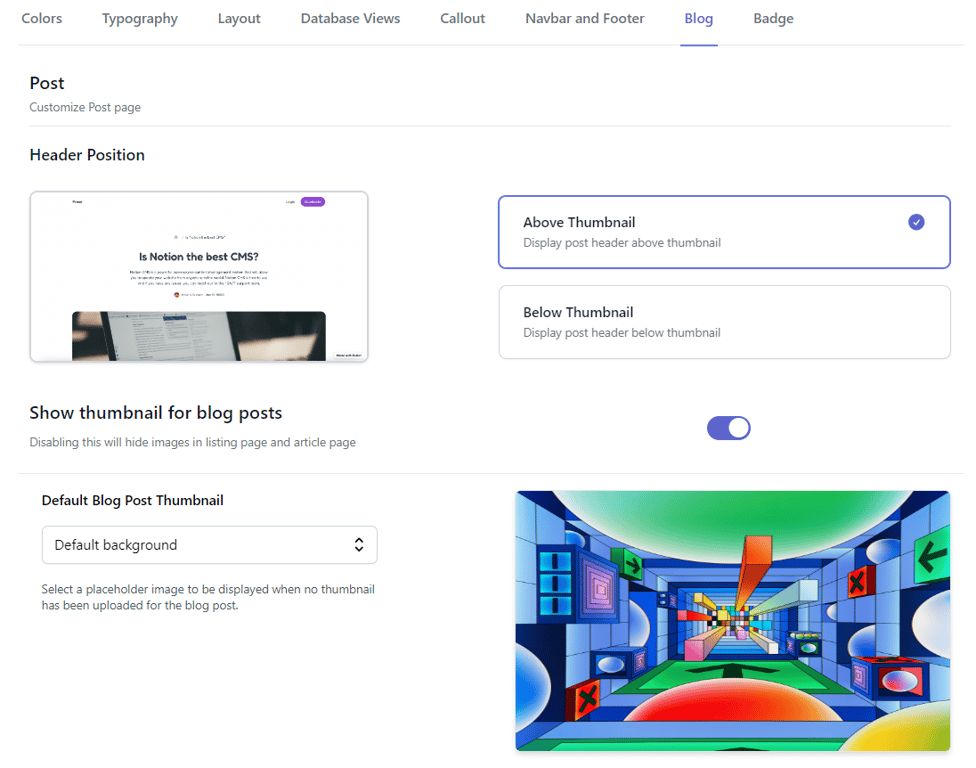
The blogpost page can be customized from **Blog** page in Theme settings. This allows you to adjust Background color of cover image.
This includes the position of the header, thumbnail for blogs, TOC, publish date format, tag position, and columns.
## Badge
The badge of the bullet can be customized from **Badge** section in Theme settings, which helps you display the floating badge, and more.
Theme settings
You can easily customize the design of your website with just a few clicks under the Theme section.
Customize the font style for your titles, headings, and quotes using Google Fonts under the "Primary Fonts" section. In the "Secondary Font" section, you can choose a font style for the text throughout your website.
The Database Views section allows you to control how Notion database pages are displayed and how users can search within them on your Bullet site.
In the 'Database Views' section of theme settings, you can tailor the configuration of the database, including the customization of individual cards within the database.
This includes customizing gallery views, cards, and search functionality in databases.
A customizable callout can be added to your site from the "Callout" page, where you can customize your callout, like shadow size and opacity of the callout.
A customizable navbar and footer can be added to your site from the "Navbar and Footer" page. The footer page will be set to default unless and until you choose on your own. This also allows you to customize your own navbar, like logo width, navbar height, and so on.











