If you want to apply custom CSS to a specific section instead of the entire site, you can target the unique ID of the block in your CSS. This allows you to apply styles to that specific section without affecting the rest of your site.
## Step 1: Wrap your content
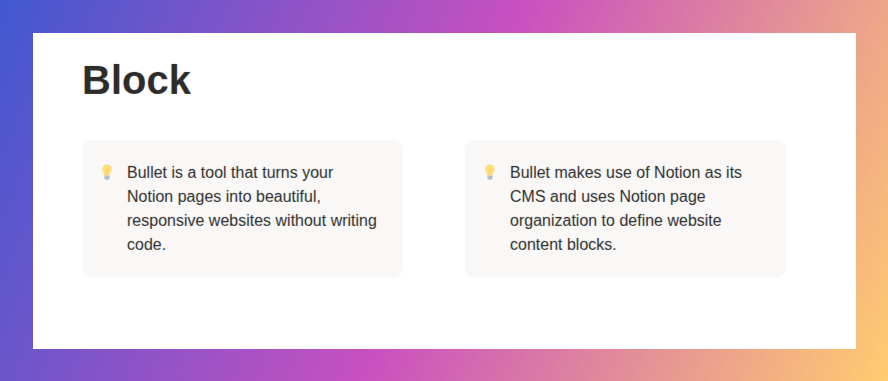
Wrap the content you want to style inside a single block.
For example, to create a two-column layout:
1. Create two columns in Notion.
2. Add a **Callout** block inside each column.
3. Place your content inside the respective Callout blocks.
## Step 2: Find the block ID
After publishing your site in **Bullet**:
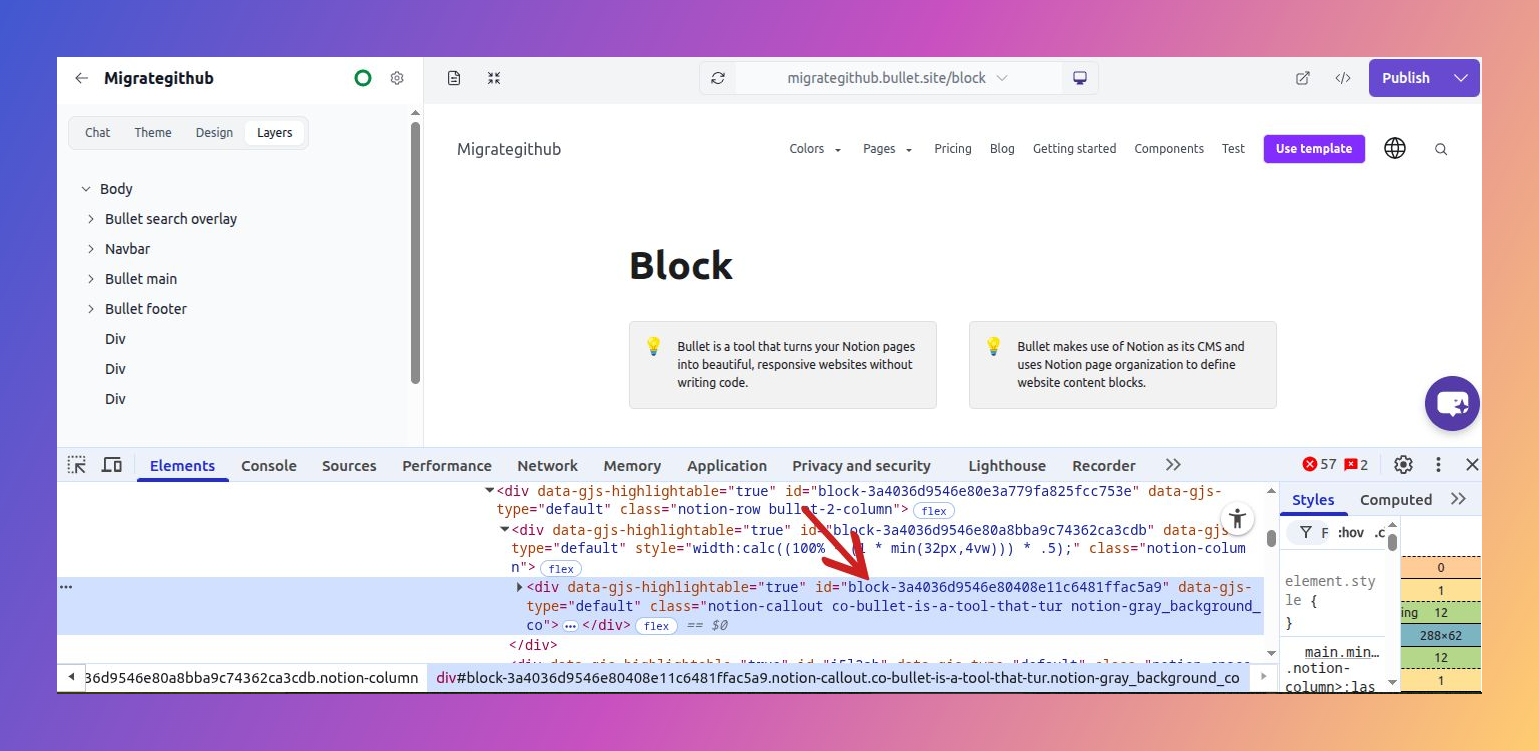
1. Right-click on the Callout section you want to style and select **Inspect**.
2. Locate the Callout element and copy its unique block ID.
## Step 3: Apply custom CSS
Go to **Site Settings → Code Editor→ CSS** and target the Callout using its block ID.
```
#block-3a4036d9546e80408e11c6481ffac5a9 {
  max-width: 1200px;
  margin: 0 auto;
  background-color: #ffcccb;
  border-radius: 12px;
}
```
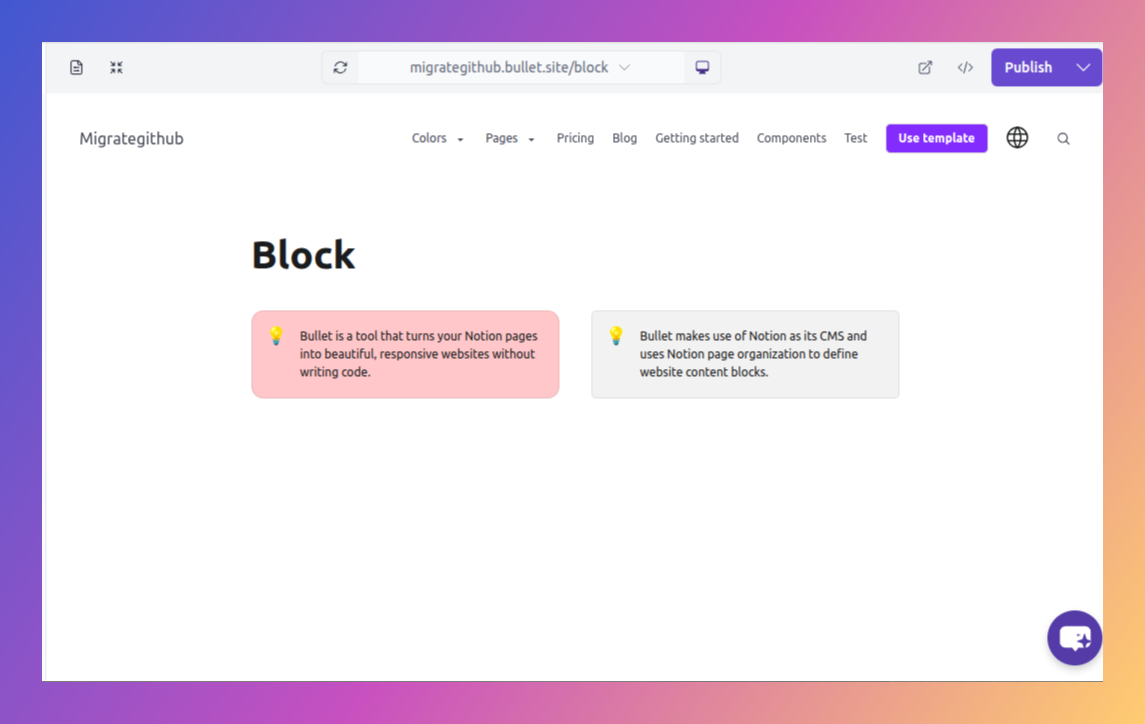
In the example below, Callout is styled independently using its unique block ID.
How to Style Individual Block with Custom CSS
If you want to apply custom CSS to a specific section instead of the entire site, you can target the unique ID of the block in your CSS. This allows you to apply styles to that specific section without affecting the rest of your site.


